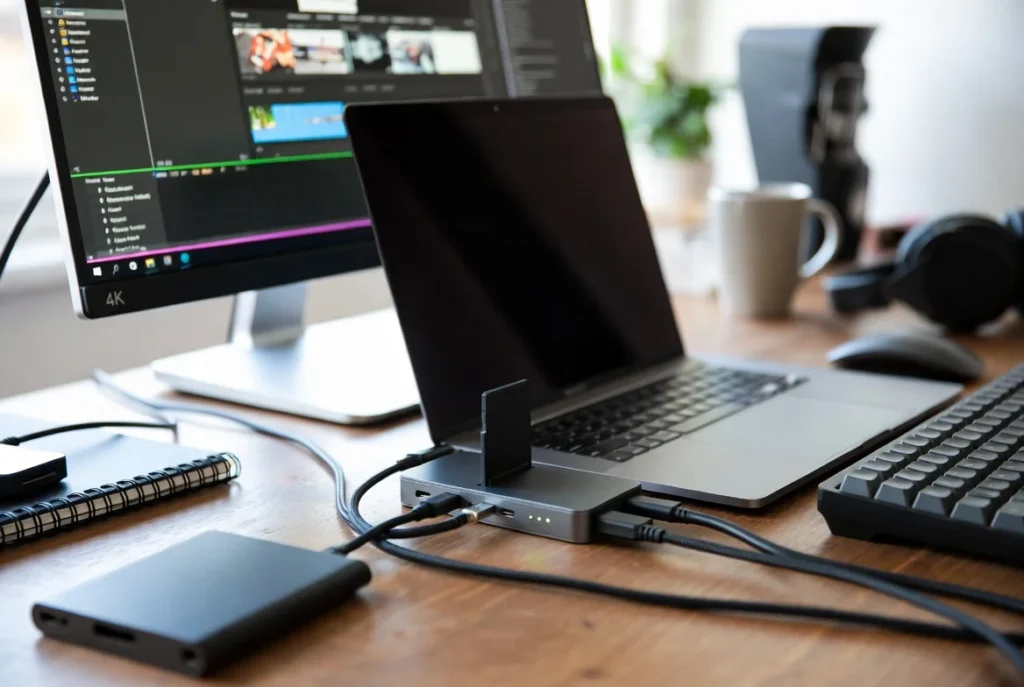
If you bought a MacBook and immediately ran into the “where do I plug everything?” problem, you are not alone. Apple’s design philosophy gives you a sleek machine but barely any ports to work with. Whether you are a student juggling assignments, a remote worker on video calls all day, or a creative professional editing 4K footage, the right USB-C hub for MacBook changes everything.
This guide covers the best options available in 2026, what to look for before buying, and how to avoid common mistakes that most people make.
Why MacBook Users Need USB-C Hubs
Modern MacBooks ship with USB-C only ports. The MacBook Air, for example, comes with just two Thunderbolt ports. The MacBook Pro 14-inch gives you three, which still fills up fast when you connect a monitor, an external drive, and a mouse.
A good USB-C multiport adapter for Mac solves this instantly. It turns one port into five, seven, or even twelve. You can plug in your HDMI display, USB-A accessories (like older flash drives and keyboards), an SD card, an Ethernet cable for stable internet, and still charge your MacBook, all from a single connection.
For remote workers, this means a clean, organized desk setup. For students, it means no more swapping cables between tasks. For video editors and photographers, it means faster file transfers and reliable 4K output without dropping frames.
Key Features to Look for in a USB-C Hub or Docking Station
Not all hubs are built the same. Here is what actually matters:
Port Selection: Look for at least one USB-A 3.0 port, one HDMI or DisplayPort output, an SD/MicroSD slot, and a USB-C pass-through for charging. More is better, but only if the ports are actually useful to you.
Power Delivery (PD): If the hub supports PD charging, check the wattage. MacBook Pro users should look for at least 96W pass-through. MacBook Air users can get by with 65W or more.
4K Display Support: A MacBook hub with HDMI should support 4K at 60Hz. Anything less and you will notice choppy video or a blurry display.
Thunderbolt Compatibility: Thunderbolt 4 docks for MacBook offer the fastest data transfer speeds (up to 40Gbps) and support daisy-chaining multiple displays. They cost more, but the performance difference is real.
Build Quality: Aluminum shells dissipate heat better than plastic. Hubs get warm during heavy use, and cheaper materials can throttle speeds or fail faster.
Bus-Powered vs. Self-Powered: Compact hubs draw power from your MacBook, which can strain the battery. Docking stations have their own power adapter, which is ideal for desk setups.
Best USB-C Hubs and Docking Stations (2026)
1. Anker 555 USB-C Hub (8-in-1)
Best for: Students and everyday users who want solid value.
The Anker 555 packs 8 ports into a compact aluminum body: HDMI 2.0 (4K at 60Hz), 2x USB-A 3.0, USB-C data, SD and MicroSD slots, and 100W PD charging. It runs cool and connects reliably, which is exactly what you need for class or coffee shop work sessions.
Pros: Affordable, well-built, 100W PD, solid 4K output. Cons: No Ethernet, single display output only.
2. CalDigit TS4 Thunderbolt 4 Dock
Best for: Power users, video editors, and anyone with a dual-monitor setup.
This is widely considered one of the best Thunderbolt docks for MacBook available today. It offers 18 ports including three Thunderbolt 4 ports, 2.5GbE Ethernet, three USB-A ports, SD UHS-II slot, and 98W host charging. The metal build is premium and it handles demanding workloads without throttling.
Pros: Exceptional port count, blazing fast speeds, dual 4K support, excellent build quality. Cons: Expensive (around $250+), overkill for casual users.
3. Satechi Slim Pro Hub Max
Best for: MacBook Pro users who want a slim desk solution.
Satechi designs products specifically for Apple users, and it shows. The Slim Pro Hub Max includes dual HDMI ports for dual 4K display output, SD card slot, USB-A 3.2 Gen 2, and a USB-C data port. Its magnetic attachment keeps it secured to the MacBook, making it ideal for portable desk setups.
Pros: Dual HDMI for dual monitors, clean design, magnetic attachment. Cons: No Ethernet, on the pricier side for a bus-powered hub.
4. UGREEN Revodok Pro 213 (13-in-1)
Best for: Remote workers who need everything in one dock.
UGREEN has built a strong reputation for value-focused accessories, and this USB-C docking station for MacBook delivers. You get dual HDMI (triple display output), Ethernet, multiple USB-A and USB-C ports, SD and MicroSD, and 100W PD. It is self-powered, which keeps your MacBook battery happy during long work sessions.
Pros: Massive port selection, self-powered, affordable for what it offers. Cons: Slightly bulkier, cable management can feel cluttered.
5. Belkin Connect Pro 12-Port Thunderbolt 4 Dock
Best for: Professionals who want Apple-certified reliability.
Belkin’s Thunderbolt 4 dock carries Apple certification, which means guaranteed compatibility with every MacBook model. It supports up to 8K display output, delivers 96W charging, and includes 3x Thunderbolt 4 ports, USB-A, Ethernet, and audio. If you want zero compatibility surprises, this is worth the investment.
Pros: Apple-certified, premium reliability, 8K display support. Cons: Premium price tag, fewer total ports than some competitors.
USB-C Hub vs Docking Station: Which One Do You Need?
People often use these terms interchangeably, but they are actually different products built for different needs.
A USB-C hub (or multiport adapter) is compact, portable, and usually bus-powered. It plugs directly into your MacBook and adds a handful of ports. Great for travelers, students, or anyone who moves around.
A docking station is a stationary device with its own power supply. It sits on your desk, handles multiple monitors, and manages everything from storage to audio. Built for remote workers and creative professionals who want a permanent, organized workstation.
Quick rule: If you move your MacBook daily, get a hub. If it lives mostly on your desk, get a dock.
Common Mistakes to Avoid
Buying a hub with only USB-A ports. Modern accessories like fast SSDs and new peripherals use USB-C. Make sure your hub has at least one USB-C data port alongside USB-A.
Ignoring power delivery wattage. A hub that only passes through 30W will slow-charge your MacBook Pro, which gets frustrating during heavy tasks.
Assuming all HDMI ports support 4K at 60Hz. Some cheaper hubs cap out at 4K 30Hz, which looks noticeably laggy for video editing or smooth scrolling. Always check the spec sheet.
Overloading a bus-powered hub. Connecting a 4K monitor, external SSD, and multiple devices to a bus-powered hub simultaneously can cause performance drops. That is when a self-powered dock is the better call.
If you enjoy exploring other useful tech tools and tips, check out this helpful resource on Google’s hidden features and experiments.
FAQs
Are USB-C hubs safe for MacBook? Yes, as long as you use reputable brands that meet USB-IF safety standards. Cheap, uncertified hubs can damage your MacBook’s charging circuit over time. Stick to brands like Anker, CalDigit, Satechi, or Belkin.
Can I connect two monitors to my MacBook Air using a hub? MacBook Air M2 and M3 natively support only one external display. However, MacBook Air M3 supports dual displays when the lid is closed. Some hubs use DisplayLink technology to work around this limitation, but they require a driver installation.
What is the difference between a Thunderbolt dock and a regular USB-C dock? Thunderbolt docks use the Thunderbolt 4 protocol, which runs at 40Gbps, supports multiple 4K displays, and can daisy-chain devices. Regular USB-C docks cap at 10Gbps (USB 3.2). If you have a MacBook Pro with Thunderbolt ports, a Thunderbolt dock makes a significant difference.
Do USB-C hubs reduce MacBook performance? Not significantly under normal use. Heavy tasks like transferring large files while driving a 4K display might push thermal limits on bus-powered hubs. Self-powered docks handle this much better.
What hub works with both MacBook Air and MacBook Pro? Most USB-C hubs work across both. For best compatibility, choose hubs labeled Thunderbolt 4 compatible or tested with Apple Silicon MacBooks.
Conclusion
Finding the right USB-C hub or docking station does not have to be complicated. Match the product to how you actually use your MacBook. A compact 8-in-1 hub handles most everyday needs without breaking the bank. A Thunderbolt 4 dock like the CalDigit TS4 or Belkin Connect Pro is worth the premium if you run a full desk setup with multiple displays and fast storage.
Focus on power delivery wattage, display output quality, and whether the hub is self-powered or bus-powered. Everything else is secondary.
Pick the right hub for your workflow and you will never have to think about ports again. Your MacBook will finally have the setup it deserves.