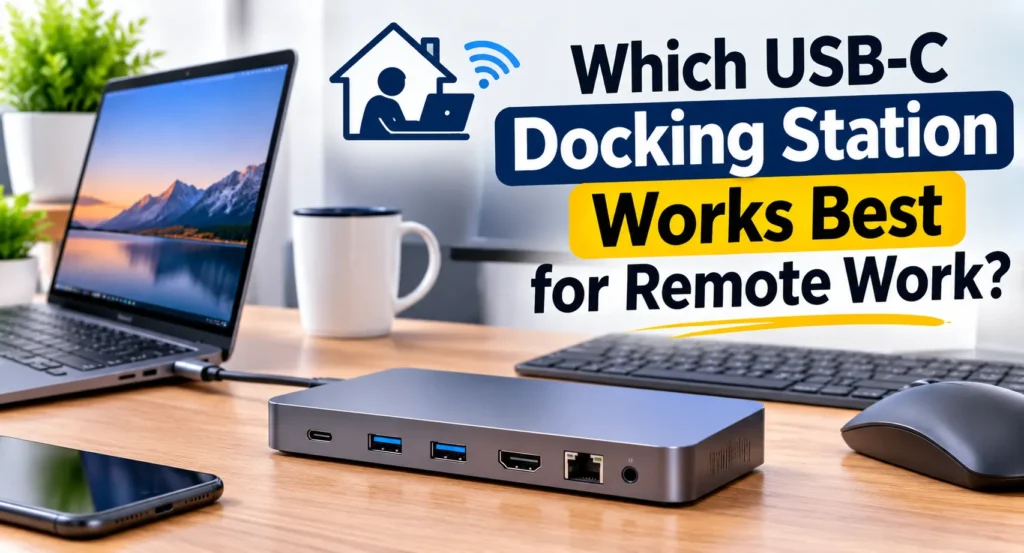
If you work from home, you probably know the feeling. You sit down at your desk, plug in the laptop, and then start the cable dance: one for the monitor, one for the keyboard, another for the webcam, a charger, maybe an ethernet cable too.After a few weeks the desk looks like a bowl of spaghetti and half the ports on your laptop are doing double duty.
A USB-C docking station fixes that. One cable goes into your laptop, and everything else stays plugged into the dock. You sit down, connect once, and you’re working. But with so many models out there, picking the right one isn’t as simple as it sounds. Here’s what actually matters, and which docks are worth a look.
What A Docking Station Actually Does
A dock is a powered hub that sits on your desk and connects your laptop to your monitors, accessories and network through a single USB-C cable. Most good ones also charge your laptop at the same time, so you’re not hunting for a separate power brick.
That’s very different from a small travel hub or dongle. Those are fine for adding an HDMI port or two USB ports on the go, but they usually can’t power a laptop properly or run multiple screens. If your desk is where you spend eight hours a day, a proper dock is worth the extra money.
Check Your Laptop Before You Buy Anything
This is the step most people skip, and it’s the one that causes the most returns. Not every USB-C port is the same.Some laptops have Thunderbolt 4 or USB4 ports, which can carry a lot of data and drive multiple displays.Others have basic USB-C ports that handle less.The connector looks identical, so you have to check the specs for your exact model.
It also matters which type of dock you buy:
- Thunderbolt docks are the fastest and most reliable, and they work best with laptops that have Thunderbolt ports. They also cost more.
- Standard USB-C docks work with a wider range of laptops and cost less. They’re perfectly good for most office-style setups.
- DisplayLink docks use extra software to add more screens than the laptop would normally support. They can be a lifesaver for certain Macs, but they need a driver installed.
If you use a MacBook, look into how many external displays your chip supports. Some base-model Macs only drive one external monitor natively, which can catch people off guard.
What To Look For
Display Support
Decide how many monitors you want now, and how many you might want later. One 4K screen is easy.Two or three screens at high resolution needs a more capable dock.Check the maximum resolution and refresh rate the dock supports for each screen, not just the number of HDMI or DisplayPort sockets on the back.
Power Delivery
If the dock can’t supply enough power, your laptop will charge slowly or not at all while you work. Many laptops need 65W, and larger ones often want 90W or 100W.Look for a dock that matches or exceeds what your laptop charger provides.
Ports You’ll Actually Use
It’s easy to be impressed by a long list of ports. Think about what you plug in every day. A webcam, headset, keyboard and mouse probably take up four. Add an external drive, and you’re at five. An ethernet port is also worth having, because a wired connection is more stable than Wi-Fi during long video calls.
Build Quality
Metal docks tend to handle heat better than plastic ones and generally last longer. A dock that runs hot all day isn’t going to age well.
The Docks Worth Considering
CalDigit TS4: Best Overall
The CalDigit TS4 shows up at the top of almost every roundup, and for good reason. It’s a Thunderbolt 4 dock with a huge selection of ports, strong power delivery and a reputation for being dependable. People who use it for long workdays rarely report disconnects or odd behavior.
The catch is the price. It usually runs somewhere around $350 to $380, and it’s larger and heavier than most. If all you need is a couple of monitors and a few accessories, it’s more dock than you need. But for anyone with a Thunderbolt laptop, a lot of gear and a desire to set it up once and forget about it, it’s hard to beat.
Anker Docks: Best Value
Anker makes a number of docks at different price points, including the 737, 563 and 565 models. They’re popular because they cover the basics well: HDMI output, USB ports, ethernet and charging, usually at a much friendlier price than a Thunderbolt dock. Some of these sit around the $100 mark, which makes them a sensible choice for a standard home office.
Before you order, check the display limits of the specific model. Some support dual monitors, while others handle only one screen at full resolution.Read the specs for your exact version, since the Anker lineup has a lot of similar names.
Plugable: Good For Extra Screens
Plugable has built a reputation for docks that solve specific problems. Its triple-display docks are a common pick for people who want more than two screens, and it also offers a Thunderbolt 4 model that costs less than the premium options. Some of its non-Thunderbolt docks use DisplayLink, so you’ll need to install a driver, especially on a Mac. That’s not a dealbreaker, but it’s good to know beforehand.
Dell And HP Docks: For Managed Work Setups
If your company issues you a Dell or HP laptop, the matching dock from the same brand is often the simplest answer. These are built to work with a specific range of machines, and IT departments know how to support them.They tend to be pricier for what you get, but compatibility is rarely a problem.
So, Which One Should You Buy?
There isn’t a single winner, because the right dock depends on your laptop and your desk. Here’s a simple way to decide:
- You have a Thunderbolt laptop and a lot of accessories: go for the CalDigit TS4.
- You want something reliable on a budget: an Anker dock is a safe starting point.
- You need three screens or want to save money on Thunderbolt: look at Plugable.
- Your employer supplied the laptop: check with IT, and consider the matching Dell or HP dock.
A Few Mistakes To Avoid
Don’t buy purely on the number of ports. Don’t assume any USB-C dock will drive two 4K monitors, because many won’t. Don’t ignore power delivery, or you’ll end up with a laptop that drains while it’s plugged in. And be careful with reviews. Many “best of” lists are written by sites that earn a commission, so cross-check a few sources and read feedback from actual buyers before you decide.
Final Thoughts
A good dock won’t change your job, but it will make your workday smoother.You’ll stop fiddling with cables, your desk will look cleaner, and your laptop will be ready to go the moment you sit down. Start with your laptop’s ports and your monitor needs, set a realistic budget, and pick the dock that fits.Get that right, and you’ll probably forget the dock is even there, which is the whole point.