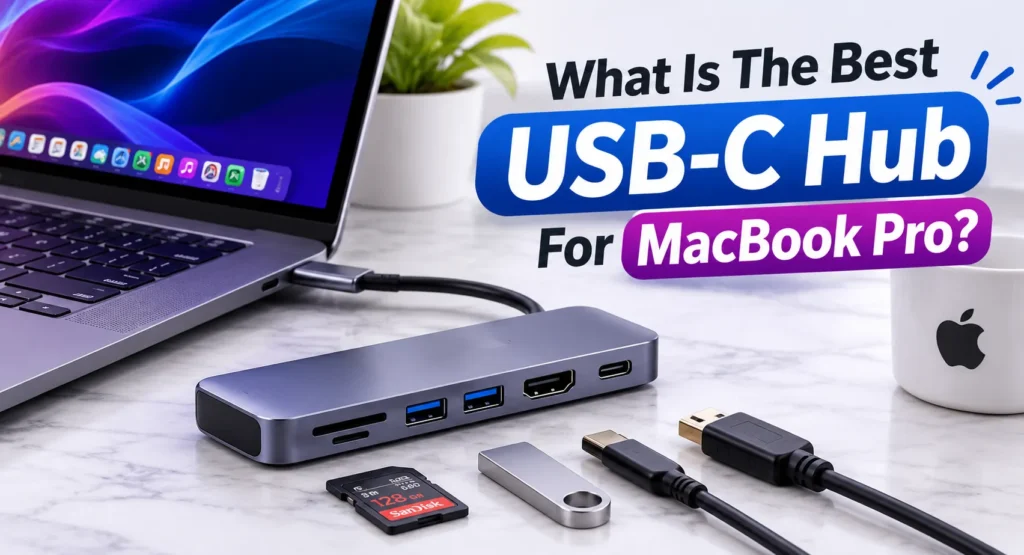
If you own a MacBook Pro, you have probably had this moment: you sit down to work, reach for your SD card reader or HDMI cable, and realize you have nothing to plug it into. Apple has kept the port count on its laptops lean, and while Thunderbolt ports are fast and flexible, they don’t cover everything most of us use daily. That is where a USB-C hub comes in.
The problem is that the market is crowded with hubs that look identical in photos but behave very differently on your desk. So instead of throwing a random list at you, let’s go through what actually matters, and then look at the hubs that consistently earn a good reputation.
What To Look For Before You Buy
1. Ports you will actually use. It is easy to be impressed by a hub with twelve ports. But if you only need HDMI, one USB-A and an SD card slot, a smaller hub will serve you better and cost less.Write down what you plug in during a normal week and buy for that.
2. Display support. This is where most people get caught out. Not every hub supports 4K at 60Hz, and some quietly cap you at 30Hz, which feels sluggish when you move your cursor.Check the spec for “4K@60Hz” specifically.
Also keep in mind that macOS does not support MST (Multi-Stream Transport).In practice, a cheap hub with two HDMI ports will often just mirror the same image on both screens rather than extend your desktop. If you want two independent displays, you need either a Thunderbolt dock or a hub built to work around this, and your MacBook’s chip also has to support multiple external displays. The base M-series chips are more limited than the Pro and Max versions, so check Apple’s specs for your exact model.
3. Power delivery (pass-through charging). A good hub lets you charge your MacBook through it. Look at the wattage. A 14-inch MacBook Pro is happiest with at least 67W to 96W, and the 16-inch wants more.A hub that only passes 60W may charge slowly or not at all under heavy load.
4. Data speed. If you move large video files or work from an external SSD, the hub’s USB speed matters. Look for 10Gbps ports at the minimum. Older 5Gbps ports are fine for a keyboard and mouse, but not for a fast drive.
5. Heat and build quality. Aluminum hubs run warm, but poorly built ones get hot enough to cause dropouts. A hub that disconnects your external drive mid-transfer is more than an annoyance.Stick with brands that offer a real warranty.
The Hubs Worth Considering
Best Overall: Anker 8-in-1 or 10-in-1 USB-C Hubs
Anker has built its name on reliable accessories, and its hubs are a safe pick for most MacBook Pro users. You typically get HDMI with 4K output, USB-A and USB-C data ports, an SD and microSD reader, and pass-through charging. They are well made, widely available, and easy to replace if something goes wrong. If you want one hub that handles a typical work setup without fuss, this is where I would start.
Best For A Clean Desk Setup: Satechi
Satechi designs its hubs to match the look of Apple products, with aluminum finishes in Space Gray and Silver that sit nicely next to a MacBook. Beyond looks, they are solid performers. Some models even slot into the side of the laptop so the hub stays out of the way. If you care about how your setup looks as much as how it works, Satechi is a strong option.
Best For Power Users: CalDigit TS4 Or A Thunderbolt Dock
If you run multiple monitors, use fast storage, plug in Ethernet, and want everything on one cable, a hub may not be enough.A Thunderbolt dock like the CalDigit TS4 gives you far more bandwidth and a lot more ports, and it can charge your MacBook at high wattage. It costs more and sits on your desk permanently, so it isn’t for travel, but for a home office it is hard to beat.
Best On A Budget: Ugreen And Similar Brands
You don’t always need to spend a lot. Ugreen and a few other brands make hubs that cover the basics at a lower price. The trade-off is usually in extras like warranty length, build finish and sustained performance under heavy use.For light use such as a mouse, a flash drive and an HDMI display, they are perfectly fine.
Best For Travel: Compact Hubs From Belkin Or Anker
If you work from cafés or travel often, a slim hub with HDMI, a USB-A port and charging pass-through is all you need. Belkin makes some neat, compact options that slip into a laptop bag without adding bulk.
A Few Mistakes To Avoid
Buying on port count alone. More ports does not mean better. The hub shares a fixed amount of bandwidth between all of them, so a crowded hub can slow things down when everything is in use.
Ignoring the cable. Some hubs have a short built-in cable that can strain your port if your setup is awkward.Look at how the cable is positioned and whether it suits your desk layout.
Using the wrong port on your MacBook. Plug the hub into a Thunderbolt port that has full bandwidth, and keep in mind that charging through a port on one side of the laptop might be more convenient for cable routing.
Assuming all “USB-C” is equal. The shape of the port tells you nothing about its speed or features. Always read the specifications.
So, Which One Should You Buy?
There isn’t a single winner for everyone, but here is a simple way to decide:
- Most people: an Anker hub. Reliable, affordable and well supported.
- Design-conscious users: Satechi.
- Heavy desk setups with multiple displays: a Thunderbolt dock such as the CalDigit TS4.
- Tight budget: a reputable budget brand like Ugreen, as long as it supports 4K at 60Hz and decent charging.
- Frequent travelers: a compact hub from Belkin or Anker.
Before you order, take two minutes to check which MacBook Pro you own, how many displays it supports, and what you plug in on a normal day. That small bit of homework will save you from returning a hub that looked perfect but didn’t quite fit.
A good hub should simply disappear into your workflow. You plug it in, everything works, and you stop thinking about it. Choose based on how you really work, and you will end up with one that does exactly that.