

Your mouse cursor is flying across the screen with the slightest touch, or maybe it is crawling even when you are moving aggressively. Either way, you are missing shots, losing matches, and wondering what went wrong. The answer likely lies in your DPI settings, the single most impactful adjustment you can make to your gaming setup today.
DPI stands for Dots Per Inch, and it determines how sensitive your mouse is to physical movement. A higher DPI means your cursor covers more screen space with less hand movement, while a lower DPI requires larger motions for the same distance. Getting this setting right can transform your gaming performance from frustrating to fluid in minutes.
Most professional gamers use DPI settings between 400 to 1600, but that range might surprise you. The sweet spot depends on your game genre, monitor resolution, play style, and even your desk space. This guide breaks down everything you need to know to find your perfect DPI setting.
What is DPI and Why Does It Matter?
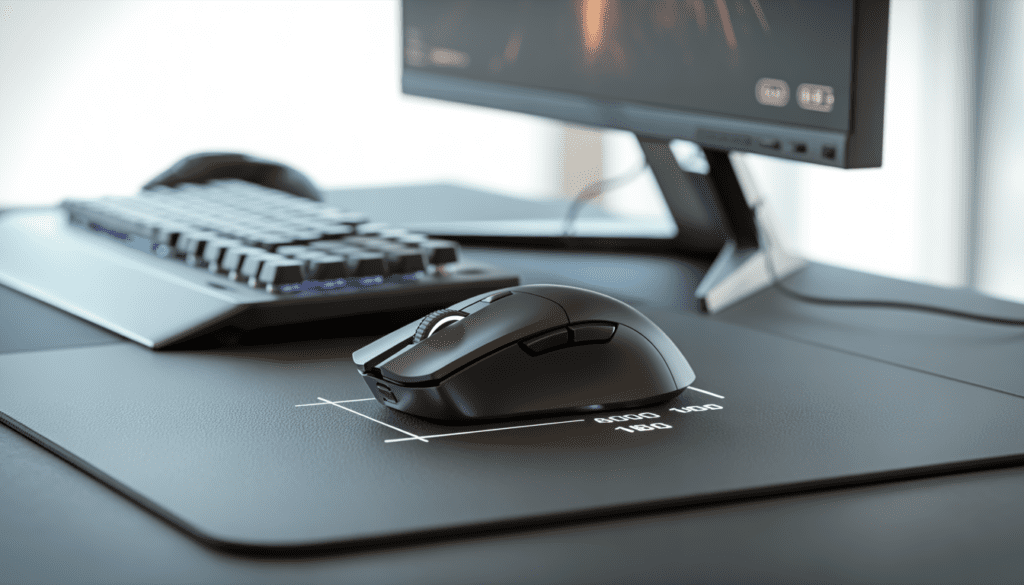
DPI measures how many pixels your cursor moves for every inch you physically move your mouse. A mouse set at 800 DPI will move your cursor exactly 800 pixels for every inch of movement. Simple math, massive impact.
Higher DPI creates faster, more sensitive cursor movements. Lower DPI gives you slower, more controlled precision. Neither is inherently better. Your ideal setting depends on what you are trying to accomplish.
Think of DPI as the sensitivity dial on a camera. Too high and everything becomes shaky and unpredictable. Too low and you miss the action entirely. The goal is finding that sweet spot where your movements feel natural and your accuracy peaks.
Modern gaming mice offer adjustable DPI ranging from 400 to 30,000 or even higher. But here is the reality check: professional esports athletes rarely exceed 1600 DPI. Data from Prosettings.net shows most pros use between 400 to 1200 DPI, regardless of how many features their expensive mice offer.
DPI vs In-Game Sensitivity
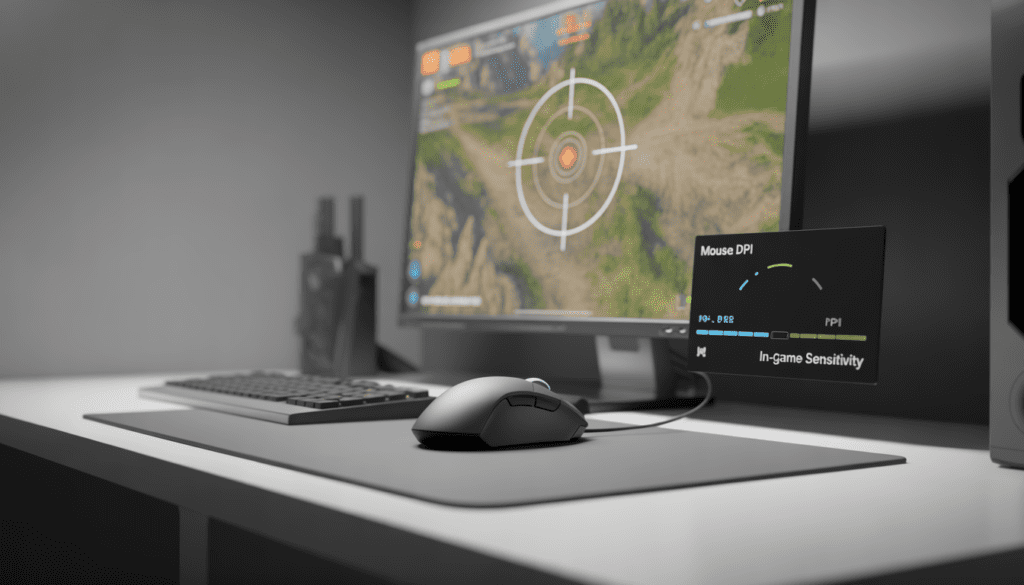
DPI is only half the equation. Your actual cursor speed comes from multiplying your mouse DPI by your in-game sensitivity setting. This combination creates what gamers call Effective DPI or eDPI.
For example, if you set your mouse to 800 DPI and your game sensitivity to 2, your effective DPI becomes 1600. This metric gives you a better understanding of your true sensitivity.
Professional Counter Strike 2 players like s1mple use 400 DPI with in-game sensitivity around 2.0, creating an effective DPI of 800. This low sensitivity allows for pixel-perfect headshots but requires arm movements and a large mousepad.
The key insight here is that you can achieve the same effective sensitivity through different combinations. Some players prefer higher DPI with lower in-game sensitivity for smoother tracking. Others choose a lower DPI with higher game settings for different reasons.
Best DPI Settings by Game Genre
Different game types demand vastly different DPI approaches. First-person shooters prioritize precision over speed, while strategy games need quick map navigation without sacrificing control.
First Person Shooters (FPS)
FPS games like Counter-Strike, Valorant, and Call of Duty reward accuracy above all else. Most professional FPS players use DPI settings between 400 to 800.
Lower DPI in shooters allows for micro adjustments that are critical for headshots. When you are tracking an enemy across your screen, that extra control from lower sensitivity can mean the difference between victory and defeat.
Professional Valorant players commonly use 400 to 800 DPI combined with in-game sensitivity ranging from 0.3 to 0.6. This creates effective DPI between 200 to 480, which sounds extremely low but enables surgical precision.
The tradeoff is physical. Low DPI requires large arm movements and significant desk space. You will need a mousepad at least 18 inches wide for comfortable play. This is why many pros have setups with massive mouse surfaces.
Battle Royale Games
Games like Apex Legends, Fortnite, and PUBG require a balance between quick 180-degree turns and precise aiming. Most battle royale players use a DPI between 800 to 1600.
This moderate range lets you snap to targets quickly while maintaining enough control for mid-range tracking. The varied gameplay situations in battle royale games benefit from this flexibility.
Many successful Apex players use 800 to 1200 DPI. This allows rapid building in Fortnite or quick looting in PUBG without sacrificing your ability to laser opponents at a distance.
MOBA and Strategy Games
League of Legends, Dota 2, StarCraft, and similar games need fast cursor movements across large screen areas. Higher DPI settings from 1200 to 3200 work better here.
Strategy games do not require the pixel-perfect accuracy of shooters. Instead, you need to select units, click abilities, and navigate the map efficiently. Higher DPI reduces the physical effort needed for these repetitive actions.
Professional MOBA players often use 1600 to 2400 DPI because they are constantly clicking different screen areas. The increased sensitivity reduces wrist strain during marathon gaming sessions.
MMO and RPG Games
Games like World of Warcraft, Final Fantasy XIV, and action RPGs benefit from medium DPI settings around 1000 to 1800. These games mix precise targeting with interface navigation.
You need enough sensitivity to quickly access abilities on your hotbar while maintaining control for boss mechanics. Medium DPI provides this versatility without forcing constant sensitivity adjustments.
How Monitor Resolution Affects Your DPI Choice
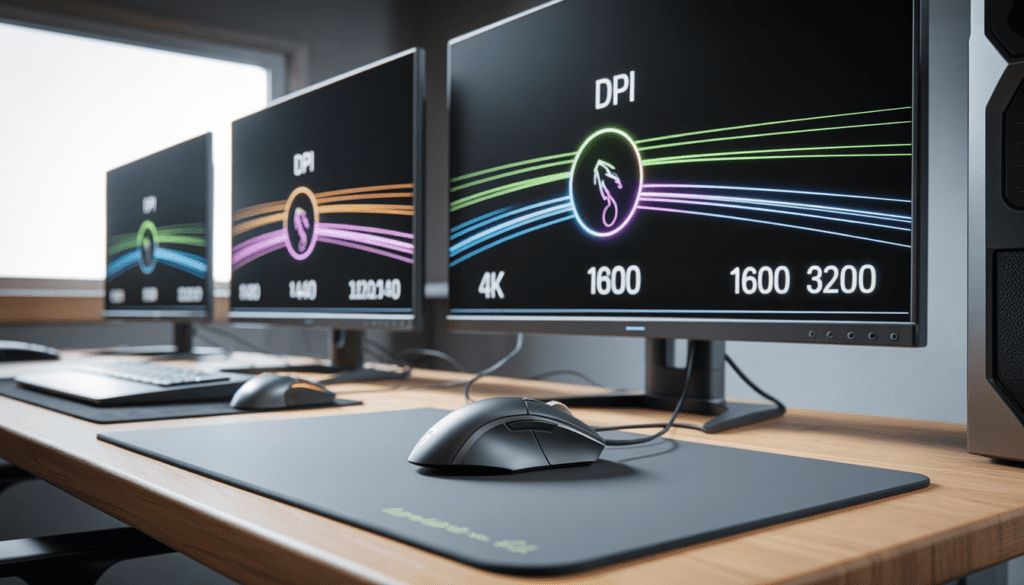
Your screen resolution directly impacts your ideal DPI setting. Higher resolution monitors have more pixels to cover, which naturally requires higher DPI for comfortable cursor movement.
For 1080p monitors with 1920 by 1080 pixels, DPI between 400 to 1600 works well for most users. This resolution has been the gaming standard for years, which is why you see so many pros using these DPI ranges.
At 1440p resolution with 2560 by 1440 pixels, you are working with 40 percent more vertical pixels. Most gamers find 800 to 2000 DPI more comfortable at this resolution. The extra pixels mean you need slightly higher sensitivity to maintain the same cursor feel.
For 4K monitors running 3840 by 2160 pixels, DPI settings from 1200 to 3000 become practical. Moving your cursor across 2160 vertical pixels at 400 DPI would require excessive hand movement. Higher DPI compensates for the increased pixel density.
Ultra-wide monitors like the Samsung Odyssey G9 with 5120 by 1440 resolution need even higher DPI for horizontal movement. Settings from 1600 to 3200 DPI help you navigate these massive screens efficiently.
Finding Your Personal Sweet Spot
Generic recommendations only get you started. Finding your perfect DPI requires experimentation and honest self-assessment about your play style and physical preferences.
Start with 800 DPI as your baseline. This middle ground setting works across most games and resolutions while you test what feels natural. Spend at least three full gaming sessions at this sensitivity before making changes.
Pay attention to specific indicators. Are you overshooting targets consistently? Your DPI might be too high. Do you feel slow and find yourself lifting your mouse repeatedly? You probably need higher sensitivity.
Adjust in small increments of 100 to 200 DPI rather than making drastic jumps. Your muscle memory needs time to adapt to each change. Big sensitivity shifts will make you perform worse before you improve.
Consider your physical characteristics. Players who use their entire arm for aiming typically prefer a lower DPI between 400 to 800. Wrist aimers who keep their arm stationary often choose a higher DPI from 1200 to 2400.
Your desk space matters significantly. Limited mousepad area forces you toward higher DPI by necessity. If you have a large gaming surface, lower DPI becomes viable and often preferable for precision games.
The Truth About High DPI Marketing
Gaming mouse manufacturers aggressively market DPI numbers as high as 30,000 or even higher. These extreme specifications create the impression that more DPI equals better performance. This is misleading marketing rather than a practical reality.
Professional esports athletes with access to any equipment they want rarely use settings above 1600 DPI. The data is clear across multiple competitive games and hundreds of top players. High DPI is not what separates pros from amateurs.
Beyond 2000 DPI, many mouse sensors activate smoothing algorithms that actually reduce precision. This smoothing interpolates movement data, which can introduce micro-jitter and inconsistency. Check your mouse manufacturer’s specifications for the smoothing threshold.
The real benefit of mice advertising 20,000 plus DPI is not the maximum number. Instead, these high-end sensors typically offer better tracking at all DPI levels, faster processing speeds, and superior build quality. You are paying for overall sensor performance, not the headline DPI figure.
Additional Factors Beyond DPI
DPI works alongside several other mouse specifications that affect your gaming experience. Ignoring these settings means you are optimizing only part of your setup.
Polling Rate
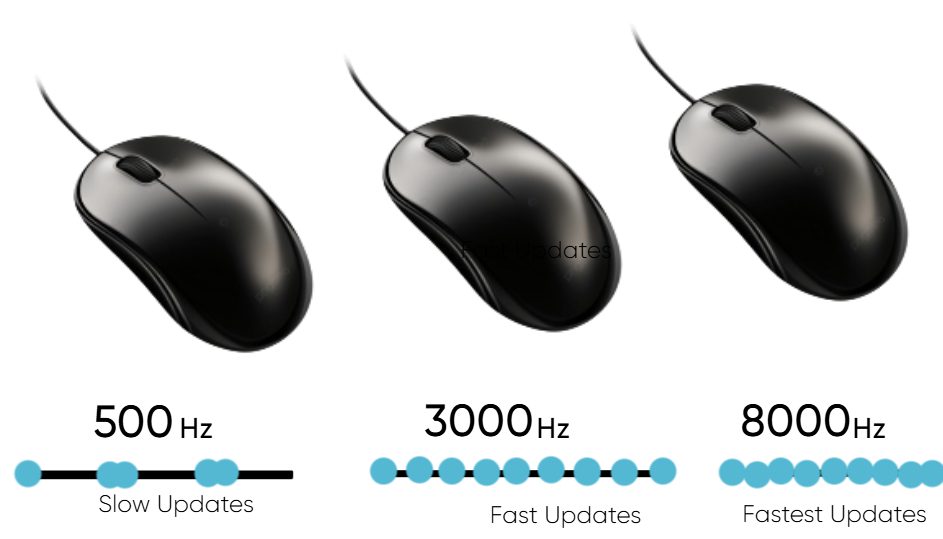
Polling rate measures how often your mouse reports its position to your computer, expressed in Hertz. Higher polling rates create smoother cursor movement with less input lag.
Most gaming mice offer a 1000 Hz polling rate, meaning the mouse communicates its position 1000 times per second. This one-millisecond response time is standard for competitive gaming and works well for most players.
Some newer mice offer 2000 Hz, 4000 Hz, or even 8000 Hz polling rates. These ultra-high rates provide diminishing returns for most gamers. The difference between 1000 Hz and 8000 Hz is imperceptible for most people, though competitive professionals might benefit from the marginal improvement.
Mouse Acceleration
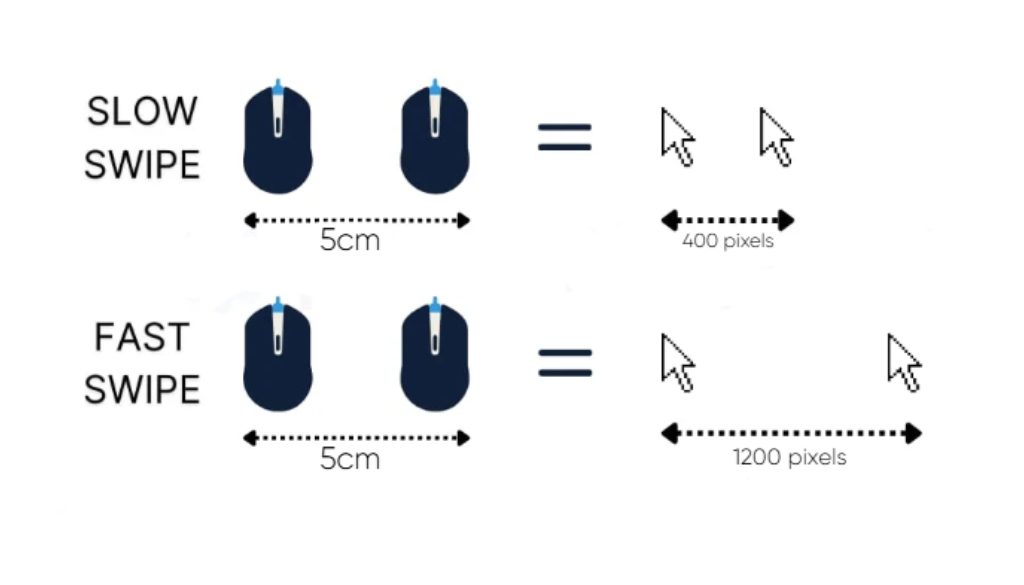
Mouse acceleration changes your cursor speed based on how fast you move your mouse physically. Faster movements create disproportionately larger cursor travel.
This sounds helpful in theory, but it creates an inconsistency that destroys muscle memory. Competitive gamers universally disable mouse acceleration in both Windows settings and individual games.
Navigate to Windows Mouse Settings, select Additional Mouse Options, click the Pointer Options tab, and uncheck Enhance Pointer Precision. This setting name is deceptive, as it actually reduces precision for gaming.
Sensor Quality
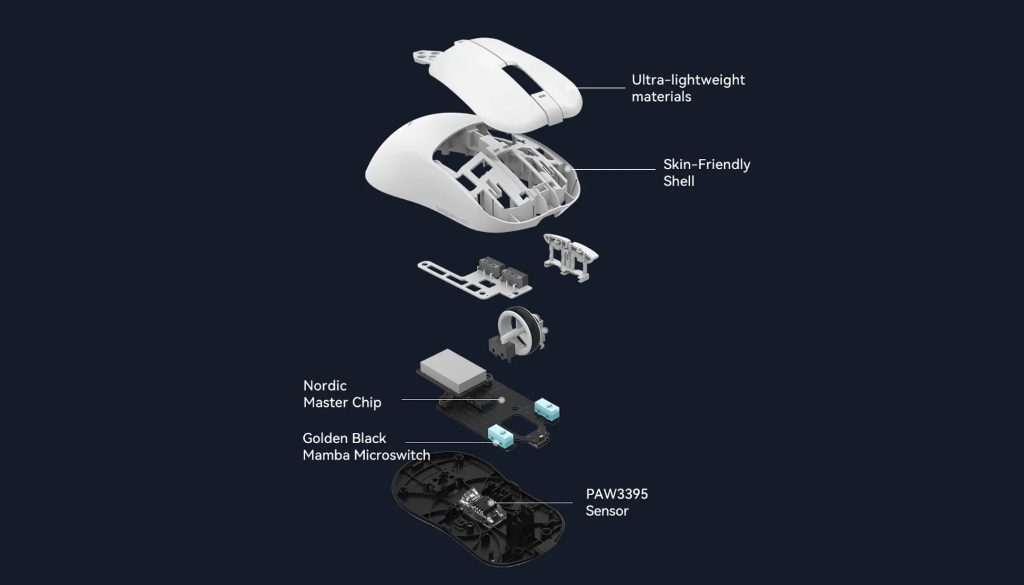
Not all sensors perform equally at the same DPI. Older sensors used interpolation and prediction algorithms that added artificial smoothing. Modern optical sensors from companies like PixArt provide raw, unfiltered tracking.
The PMW3360, PMW3389, and newer sensors handle high DPI without smoothing up to much higher thresholds. These sensors also offer superior tracking on various surface types and at different speeds.
When shopping for a gaming mouse, research the specific sensor model rather than trusting only the DPI specification. A mouse with a quality 3360 sensor at 3200 DPI will outperform a cheap mouse advertising 16000 DPI.
Common DPI Mistakes to Avoid
Many gamers sabotage their performance through preventable DPI-related errors. Recognizing these mistakes helps you optimize faster and avoid frustration.
Changing sensitivity too frequently prevents muscle memory development. Your brain needs consistent input to build automatic responses. Stick with any DPI setting for at least two weeks before switching unless it feels completely wrong.
Using different DPI across similar games creates confusion. If you play multiple FPS titles, use the same effective sensitivity for all of them. Your aim transfers between games when the sensitivity feels identical.
Copying professional player settings without considering context rarely works. Pros use specific DPI based on their monitor size, desk space, mouse grip style, and years of practice. What works for a professional might feel terrible for you.
Neglecting your mousepad surface affects tracking quality. Different sensor types perform better or worse on cloth versus hard surfaces. Some mice struggle with dark or reflective pads. Test your mouse on the specific surface you will use.
Testing Your DPI Settings
Create a systematic approach to finding your optimal DPI rather than randomly adjusting based on gut feel. Structured testing produces consistent results faster than trial and error.
Load your main game and enter a practice range or training mode. Set your DPI to your current testing value and complete the following drills. Track your results to compare different settings objectively.
Complete ten flick shots to targets at various angles. Note your accuracy percentage and how the movement feels. Good DPI lets you hit targets consistently without overshooting or undershooting.
Track a moving target for thirty seconds without losing your crosshair placement. Lower DPI typically improves tracking smoothness, while higher DPI can create jittery movements.
Perform five 180-degree turns as quickly as possible. You should complete each turn comfortably without lifting your mouse. If you need multiple swipes, your DPI is too low for your available mouse space.
Execute precision tasks like headshot boxes or small target elimination. This tests your fine motor control at the current sensitivity. Difficulty with small adjustments indicates DPI is too high.
Document your results for each tested DPI value. Include notes about comfort level, accuracy percentages, and any physical strain. This data helps you make informed decisions rather than relying on vague impressions.
Maintaining Consistency Across Devices
Many gamers use multiple computers or play at friends’ houses. Maintaining consistent DPI across different setups preserves your muscle memory and performance level.
Modern gaming mice include onboard memory that stores your DPI profiles directly on the device. Configure your preferred settings once, and they will work on any computer you plug into without installing software.
Save your exact DPI numbers and in-game sensitivity settings in a note on your phone. This backup ensures you can recreate your setup if you lose mouse profiles or need to configure a new device quickly.
Many games support sensitivity calculators that convert settings between titles. Use tools like Mouse Sensitivity to find equivalent settings across Counter-Strike, Valorant, Apex Legends, and other popular games.
When to Change Your DPI
Most players benefit from finding one DPI and sticking with it permanently. However, certain situations justify sensitivity adjustments beyond your main setting.
Consider lowering the DPI temporarily when learning a new high-precision game. Starting with slower sensitivity helps you develop proper crosshair placement and movement patterns before increasing speed.
Raise the DPI if you develop wrist pain or repetitive strain injuries. Higher sensitivity reduces the physical movement required, which can alleviate stress on your tendons and joints. Consult medical professionals for persistent pain.
Adjust DPI when changing monitor resolution or size. The same DPI at 1080p and 4K creates drastically different cursor speeds. Recalibrate after any display upgrades.
Conclusion
Finding your ideal mouse DPI is not about copying professionals or chasing the highest number your mouse offers. The best DPI setting feels natural, enables consistent performance, and matches your specific gaming needs.
Start with 800 DPI as your testing baseline. Adjust based on your game genre, monitor resolution, available desk space, and personal comfort. Give each sensitivity at least two weeks before making changes.
Remember that DPI works together with in-game sensitivity, polling rate, and mouse acceleration settings. Optimize all these factors together rather than focusing only on DPI numbers.
Your perfect mouse sensitivity exists at the intersection of precision, comfort, and practicality. Take time to find it systematically rather than guessing randomly. The improvement to your gaming performance will justify every minute spent testing.
Disable mouse acceleration, invest in a quality mousepad, and maintain consistent settings across games. These supporting factors amplify the benefits of proper DPI configuration.
Most importantly, focus on fundamentals like crosshair placement, game sense, and positioning. Mouse DPI is important, but it remains just one tool in your competitive gaming arsenal. Perfect sensitivity without practice still loses to mediocre settings combined with superior skill.