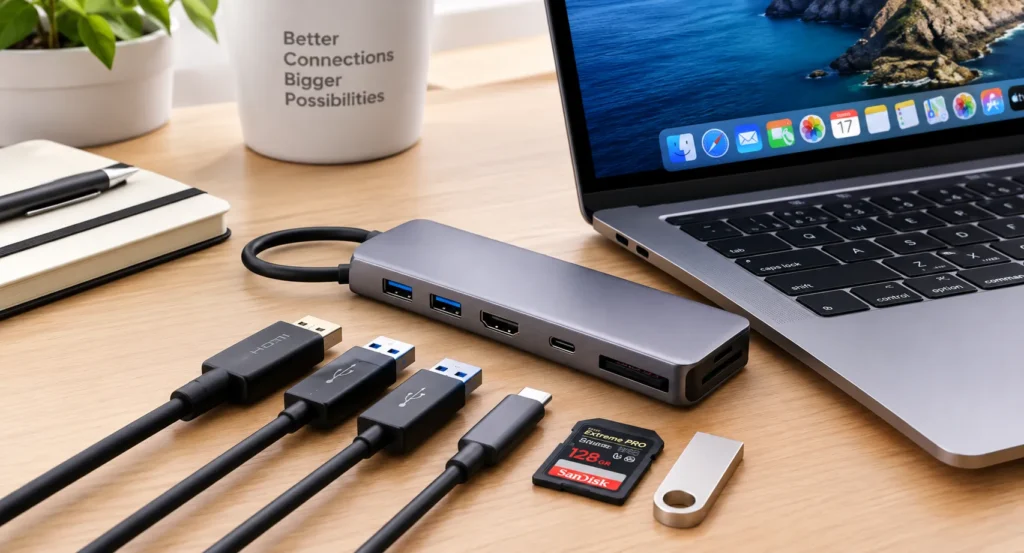
Apple builds beautiful laptops, but it also builds them with very few ports. A MacBook Air gives you a couple of USB-C connections and not much else, and the moment you want to plug in a monitor, a flash drive and a camera card, you hit a wall.
A USB-C hub fixes that. The catch is that hubs vary enormously. Some are fast, reliable and well built, and others overheat, drop connections or quietly limit your monitor. Here’s what matters and which hubs keep earning good reviews.
What A Hub Actually Does
A hub plugs into a USB-C port and splits it into several connections. Typical ports include HDMI for a monitor, USB-A for older devices, an SD card reader, Ethernet and a pass-through USB-C port for charging.
A hub isn’t the same as a dock. Hubs are compact and portable, and they usually draw power from your laptop. Docks are larger desktop units with their own power supply, built to run multiple monitors and many devices. If you just want a few extra ports, a hub is enough. If you’re building a full desk setup, a dock may be better.
The Features That Matter Most
Ports you’ll actually use. Count what you plug in every week.HDMI, a couple of USB-A ports and an SD reader cover most people. Ethernet is useful for stable video calls. Don’t pay for ports you’ll never touch.
Video output. Check the resolution and refresh rate.Many hubs support 4K at 30Hz, which is fine for documents but looks choppy for general use.Look for 4K at 60Hz if you want smooth scrolling and video.
Power delivery. A hub with pass-through charging lets you power the MacBook through the same connection. A hub rated for 100W typically delivers somewhat less to the laptop, around 85W in one maker’s testing, because the hub itself uses some power. That’s still plenty for most MacBooks, but check that the rating matches your charger and model.
Data speed. USB ports on cheap hubs can be slow.If you move large files or use external drives, look for 10Gbps ports.
Build and heat. Aluminum bodies dissipate heat better than plastic.A hub that gets very hot may throttle performance or wear out sooner.
Cable design. Some hubs plug straight into the laptop, while others have a short cable.Direct plug-in designs look neat but can block neighboring ports.A short cable gives you more flexibility.
Models That Keep Appearing In Reviews
Hub lineups change fast, and many “best of” lists come from companies that sell hubs themselves, so treat any ranking as a guide and read independent reviews as well. A few names show up consistently.
Anker 555 (8-in-1). Frequently named the best overall.It offers a broad range of ports, 4K 60Hz HDMI, fast USB-C data and 85W charging, which makes it a strong daily driver.
Satechi Pro Hub Slim. A popular premium pick for MacBook Pro users. It plugs into two adjacent ports to create a tidy, integrated look and offers fast speeds.
Satechi Type-C Pro Hub. A longtime favorite for its aluminum body that matches the MacBook’s look.
UGREEN hubs. The 10-in-1 hub and the Revodok range are often recommended as practical, good-value options, including compact versions for people who only need HDMI and a few ports.
EZQuest USB4 hubs. Often cited for dual-display setups.
Plugable 7-in-1. A dependable, affordable choice that reviewers like for its no-nonsense design.
Kensington and Targus. Better suited to travel and docking-style setups.
Thunderbolt docks, such as CalDigit models. These are the fastest and most capable, but also pricier. They make sense if you want a full desktop setup with multiple displays and fast storage.
The Monitor Catch Many People Miss
This is the part that surprises people. A MacBook doesn’t always support as many external displays as you’d expect, and the limit depends on the model. Some base MacBooks support only one external monitor natively, no matter how many HDMI ports the hub offers.
Also, macOS doesn’t support a technology called MST, which many hubs rely on to drive two monitors from one cable. That means a hub with two HDMI ports may mirror the same picture on both screens instead of extending your desktop.Dual-display hubs that work properly on Mac usually rely on special software drivers or on Thunderbolt and USB4 connections.
If dual monitors matter to you, check your exact MacBook’s display support and look for a hub that explicitly says it works with extended displays on macOS.
Match The Hub To Your Setup
You travel a lot. Choose something small and light with HDMI, a USB-A port, an SD reader and pass-through charging.Compact hubs fit in a pocket and still cover the essentials.
You work at a desk. An 8-in-1 or 10-in-1 hub with HDMI, Ethernet, several USB ports and a card reader gives you a proper desk setup from one connection.
You edit photos or video. Prioritize fast ports and a good SD card reader.A high-speed hub or a Thunderbolt dock helps you move big files quickly.
You need two monitors. Look for a hub or dock designed for dual displays on Mac, and confirm your laptop supports it.
You’re on a budget. A simple 5-in-1 or 7-in-1 from a reputable brand covers most needs.Avoid very cheap, unbranded hubs, which are often slow and can run hot.
Common Problems And Quick Fixes
Wi-Fi interference. Some hubs with USB 3.0 ports can disrupt nearby wireless signals.Keeping the hub away from your Wi-Fi source, or using a hub with better shielding, helps.
Dropping connections. Loose cables or overloaded hubs can cause disconnects.Try a different port or reduce the number of connected devices.
Slow charging. Make sure you’re using a charger and cable rated for your MacBook’s needs, and that the hub supports sufficient power delivery.
External drive not recognized. Plug the drive in directly to rule out the hub, then try a different port.
Safety And Quality
Charging your MacBook through a hub is generally safe, provided the hub supports Power Delivery and is compatible with your model. Choose established brands with clear specifications and a warranty, and be wary of unusually cheap hubs that claim to do everything.
Final Thoughts
The best USB-C hub for a MacBook is the one that matches how you actually work. Make a quick list of the devices you plug in, check the video and charging specs, and be realistic about how many monitors your laptop supports.
For most people, a well-reviewed 7-in-1 or 8-in-1 hub from a reputable brand does the job. If you have more demanding needs, a Thunderbolt or USB4 dock is worth the extra money.Spend a little time choosing now, and you’ll save yourself a lot of frustration later.